
How to use
ReviewSTATLAB
From installing the browser extension to running analytics and importing your own data in JSON format.
Install the extension
ReviewSTATLAB is compatible with Chrome, Brave, Edge, and Firefox. Setup takes less than a minute. Download the extension directly from our official website to install it manually, as it’s not yet available in browser web stores.
Updates follow the same process: download the new version and reinstall it.
Chrome, Brave & Edge Chromium
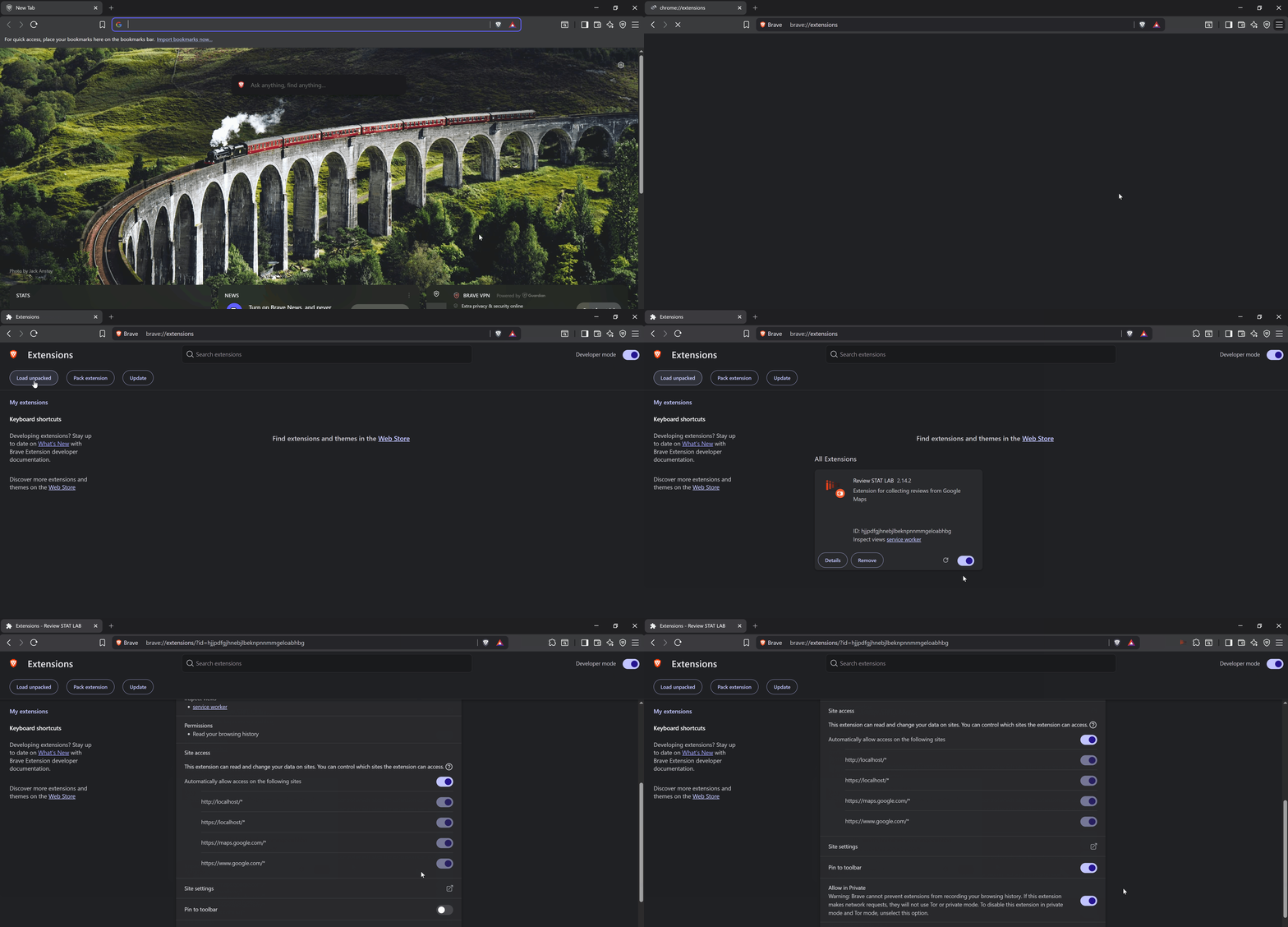
Download the extension from the website
Click the download button on the main page — you’ll get a ZIP archive with the extension files. Unzip it to a convenient folder.
Open the extensions page
In Chrome or Brave, go to chrome://extensions. In Edge — edge://extensions.
Enable Developer mode
Find the Developer mode toggle in the top-right corner of the extensions page and turn it on.
Load the unpacked extension
Click Load unpacked and select the folder where you unzipped the extension. ReviewSTATLAB will appear in your extensions list.
Pin the extension to your toolbar
Click the puzzle icon in the browser toolbar → find ReviewSTATLAB → click the pin icon. The extension icon will appear in your toolbar for quick access.
Firefox
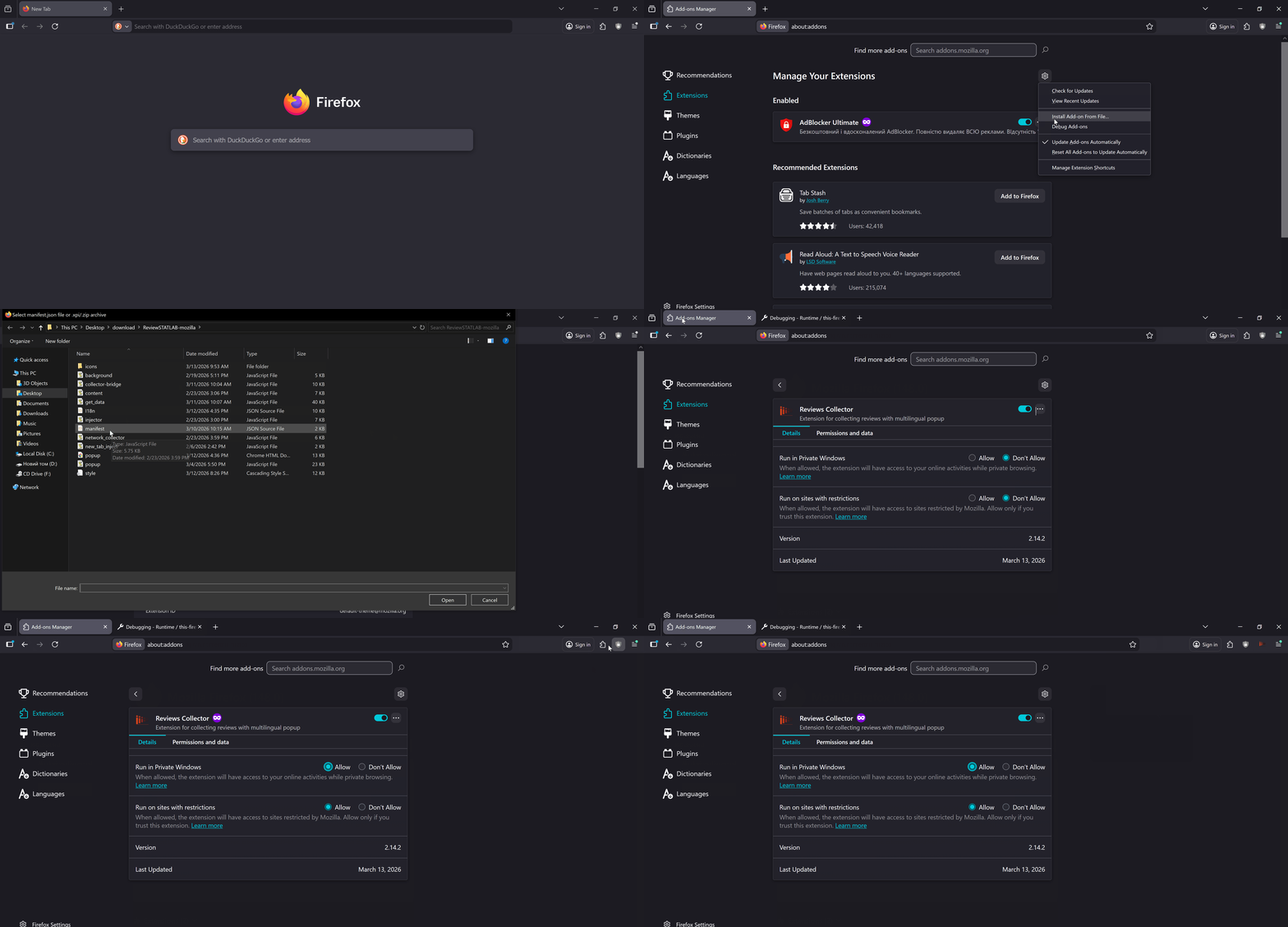
Download the extension from the website
Download the ZIP archive from the main page and unzip it.
Open the debugging page
Navigate to about:debugging#/runtime/this-firefox.
Load a temporary add-on
Click Load Temporary Add-on and select the manifest.json file from the unzipped folder.
🔑 License key activation
free — the extension will activate immediately. For paid plans, your key is available in your account dashboard, where you can also regenerate it if needed.Get your key
For the Free plan, use the key free. For paid plans — log in to your account dashboard. You can also regenerate your key there at any time.
Open extension settings
Click the ReviewSTATLAB icon in your browser toolbar → go to Settings (gear icon ⚙️).
Paste your key and save
Paste the key into the API key field and click Save. The extension will verify the key and switch to the corresponding plan.
How to use the extension
No Google account is required. Just open Google Maps and navigate to any business profile.
You can also use a VPN or TOR when collecting large volumes of reviews or author network data. Just make sure your account dashboard is accessible from that same IP before you start — some TOR exit nodes may be blocklisted.
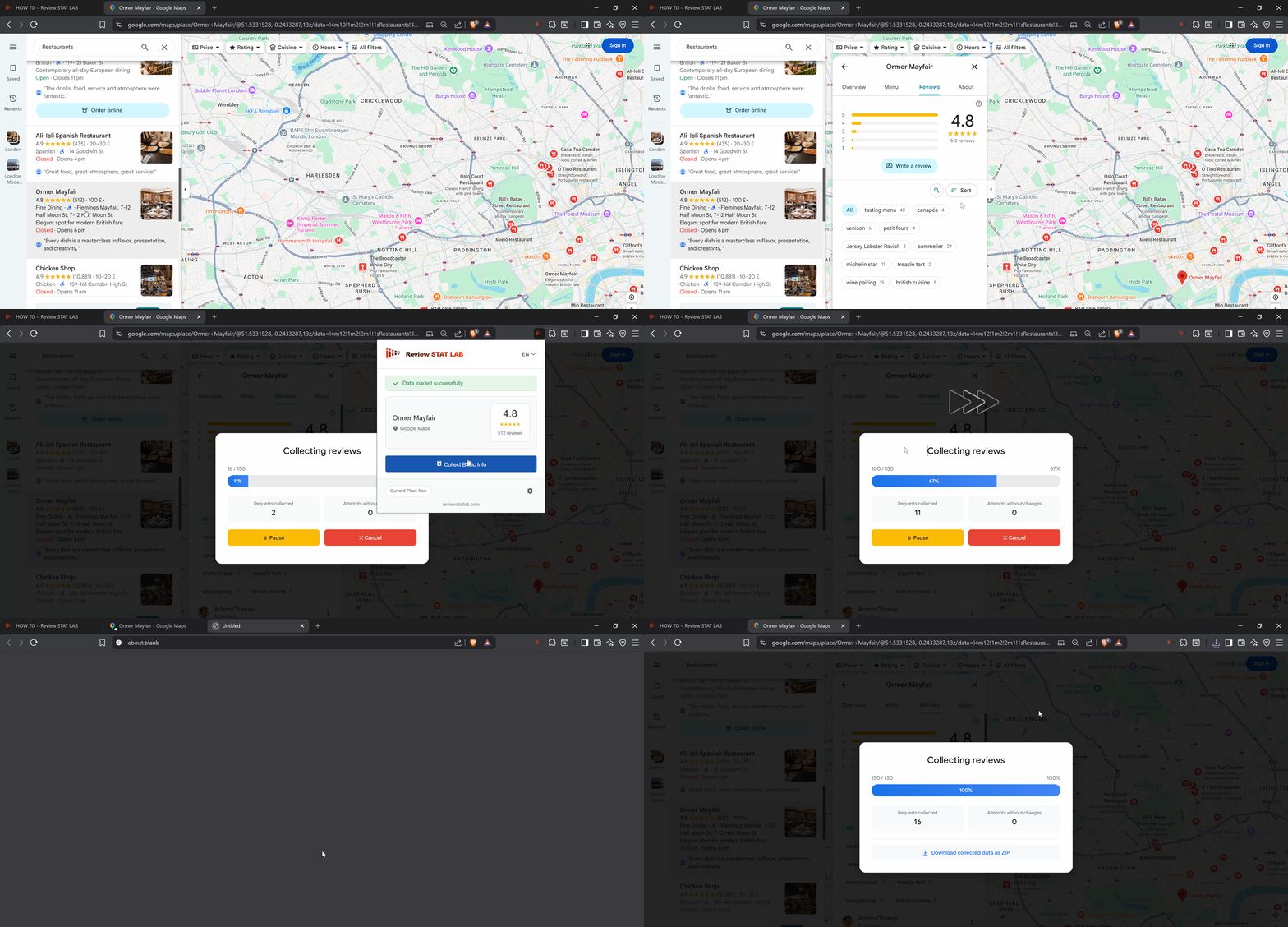
Go to Google Maps
Open maps.google.com and find the business profile you want to analyze.
Open the Reviews tab
On the business page, click the Reviews tab. Change the sort order if needed — for example, to Newest or By rating.
Click “Collect Basic Info” or “Collect Network Data”
Click the ReviewSTATLAB icon in your browser toolbar — the extension will automatically detect the business and show the collection buttons. Choose a mode and start collecting.
Free plan
Quickly collect the latest reviews or all reviews for smaller local businesses, with CSV export. No account required.
Open a business profile on Google Maps
Go to maps.google.com, open the business profile and click the Reviews tab. Change the sort order to Newest or By rating. If needed, reload the page and try again.
Click the ReviewSTATLAB icon
A popup will open showing the business name, current rating and total review count.
Click “Collect Basic Info”
Collection runs in the background with a progress bar. On the Free plan, it stops automatically once the plan limit is reached.
Download the ZIP with CSV
When collection is complete, click Download collected data as ZIP. The archive contains a CSV file with: reviewer name, rating, review date, edit date, review text, owner reply link and reply date.
Researcher plan
The plan limits are sufficient to independently analyze 90% of all businesses on Google Maps.
Request intervals are controlled using a log-normal distribution, which mimics natural user behavior and reduces the risk of being blocked.
Default parameters: range 900–4000 ms, mode 1900 ms — roughly ~250 reviews/minute. The defaults are sufficient for virtually any use case within the plan limits.
After collection, the raw data is temporarily stored on the server so you can view the report in your account dashboard. The number of reports, their content and retention period depend on your plan. Raw data is deleted along with the reports once the retention period expires.
All reports are stored for 7 days and accessible via the Analysis history dashboard.
Same structure as the Free plan.
Agency plan
Unlimited collection, author network analysis, JSON export, custom data import and 1-month report retention.
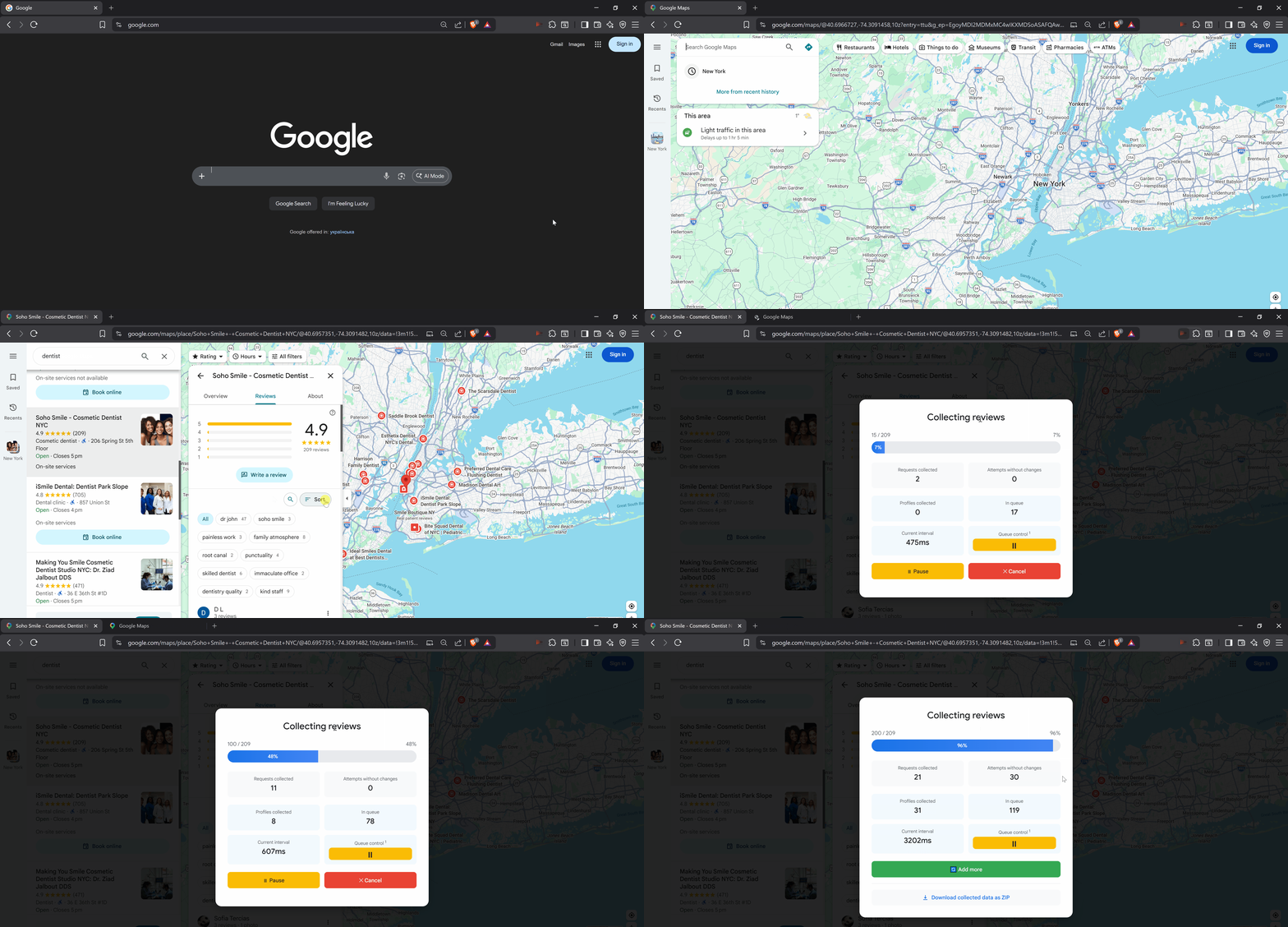
Click Collect Network Data on the extension’s main screen to start. This collects up to 10 recent reviews left by each reviewer at other businesses — using their public profiles.
Approximate speed: ~400 profiles/hour. The rate varies dynamically to reduce the risk of blocks from Google.
Generated automatically when network data is available. Includes an Author Overlap diagram and a risk score table — ready to use as evidence in a Google Business complaint.
Export the full structured dataset, including author profiles and network connections. Compatible with Python, Power BI or any custom data pipeline.
Already have review data? Upload a JSON file in ReviewSTATLAB format directly from your account dashboard (under Analyze your own data) to generate a full analytics report without collecting from Google Maps. See the JSON format below.
All reports are stored for 30 days and accessible via the Analysis history dashboard.
JSON import format
The file generated by the Google Maps review collector. Below is the full structure and field descriptions.
[0].📐 Root object
Required top-level fields.
[
  {
    "datetime":      "2026-02-10 18:14:08",               // string — collection date YYYY-MM-DD HH:MM:SS
    "currentUrl":    "https://www.google.com/maps/place/...", // string — business URL on Google Maps
    "mode":          "extended",                          // string — collection mode
    "companyInfo":   { /* see below */ },
    "metadata":      { /* see below */ },
    "reviews":       [ /* array of review batches */ ],
    "authorNetwork": [ /* array of author network batches */ ]
  }
]
🏢 companyInfo
Basic business information.
"companyInfo": {
  "name":   "Business name",  // string — business name
  "rating": 4.5,             // float  — overall rating 1.0–5.0
  "amount": 462              // int    — total review count
}
🗃 metadata
Counters for collected data.
"metadata": {
  "totalRecords":   462,  // int — number of collected reviews
  "networkRecords": 270   // int — number of records in authorNetwork
}
⭐ reviews — review array
reviews is an array of batches. Each batch has a response field — an array of records. Each record is a fixed-length array of 9 elements.
"reviews": [
  {
    "response": [
      [
        "1770639430",                                        // [0] int — creation date (unix)
        "1770639430",                                        // [1] int — edit date (unix)
        "2026-02-09T12:17:10.000Z",                          // [2] string — creation date ISO 8601
        5,                                                   // [3] int    — rating 1–5
        "Great service, highly recommend!",                  // [4] string — review text
        "Author Name",                                       // [5] string — author name
        "https://.../contrib/<ID>",                         // [6] string — author profile URL
        "1770654323",                                        // [7] string — owner reply unix timestamp
        1                                                    // [8] int    — total reviews by this author
      ]
    ]
  }
]
🕸 authorNetwork — author network
authorNetwork is an array of batches. Each batch is an array of records. Each record is a fixed-length array of 9 elements. Contains reviews left by the same authors at other businesses — used for suspicious activity analysis.
"authorNetwork": [
  [
    [
      "https://....../contrib/<ID>/reviews",                // [0] string        — author profile URL
      "Author Name",                                        // [1] string        — author name
      2,                                                    // [2] int           — review count
      5,                                                    // [3] int           — rating 1–5
      1769803882118701,                                     // [4] int (unix ms) — review creation date
      1769803882118701,                                     // [5] int (unix ms) — review edit date
      "Business Name",                                      // [6] string        — business name
      "123 Example St, New York",                           // [7] string        — business address
      "https://www.google.com/maps/place/...data=..."       // [8] string|null   — business URL (null → record is skipped)
    ]
  ]
]
[8] is null or the URL matches the currentUrl of the analyzed business are excluded from analysis. Only authors with reviews across 3+ different businesses appear in the report.📋 Minimal valid example
A complete file with one review and one author network record.
[
  {
    "datetime":    "2026-02-10 18:14:08",
    "currentUrl":  "https://www.google.com/maps/place/Random/@49.79,24.05,16z/data=!...1s0x473ae95075e70f01:0x...",
    "mode":        "extended",
    "companyInfo": {
      "name":   "Random",
      "rating": 4.5,
      "amount": 462
    },
    "metadata": {
      "totalRecords":   462,
      "networkRecords": 270
    },
    "reviews": [
      {
        "response": [
          [
            "1770639430",
            "1770639430",
            "2026-02-09T12:17:10.000Z",
            5,
            "Great service, highly recommend!",
            "Random User",
            "https://www.google.com/maps/contrib/<ID>",
            "1770654323",
            1
          ]
        ]
      }
    ],
    "authorNetwork": [
      [
        [
          "https://www.google.com/maps/contrib/<ID>/reviews",
          "Random User",
          2,
          5,
          1769803882118701,
          1769803882118701,
          "Random",
          "123 Example St, City",
          "https://www.google.com/maps/place//data=!4m2!3m1!1s0x473ae96cda108f2f:0xc3d697c77e1270f9"
        ]
      ]
    ]
  }
]